Claude as a chat
Type claude in any terminal and Claude Code opens as a chat, with its edits as diffs, its questions as buttons, and the terminal one keystroke away.
Open the chat
There are two ways:
- In any terminal, type
claude. The session turns into the chat, in that folder. - Click New Claude chat: in the workspace's + menu, on its empty page, or with .
The chat understands the claude options you'd use day to day: -c / --continue, -r / --resume, --model, --permission-mode and --effort. Commands that don't open a conversation, such as claude -p, claude mcp or claude doctor, run in the terminal as before, and so does command claude.
Prefer Claude Code in the terminal? Turn off Settings › General › Typing claude opens the chat. It applies to terminals you open afterwards.
Log in to Claude
A chat that isn't signed in asks you to Log in to Claude to start:
- Use an account this Mac is already signed in to (one from another workspace, or one you added). No need to log in again; the workspace uses it from then on.
- Log in with Claude for a Claude Pro or Max plan, or Use a Console account to pay by use with an API key. Your browser opens to log in, once.
- Browser didn't come back? lets you paste a code instead.
Termlux never sees your Claude password and doesn't keep your login: Claude Code logs in itself, and Termlux only tells it which account to use.
Switch account
··· › Claude account… in the chat box lists the Claude accounts on this Mac, each once:
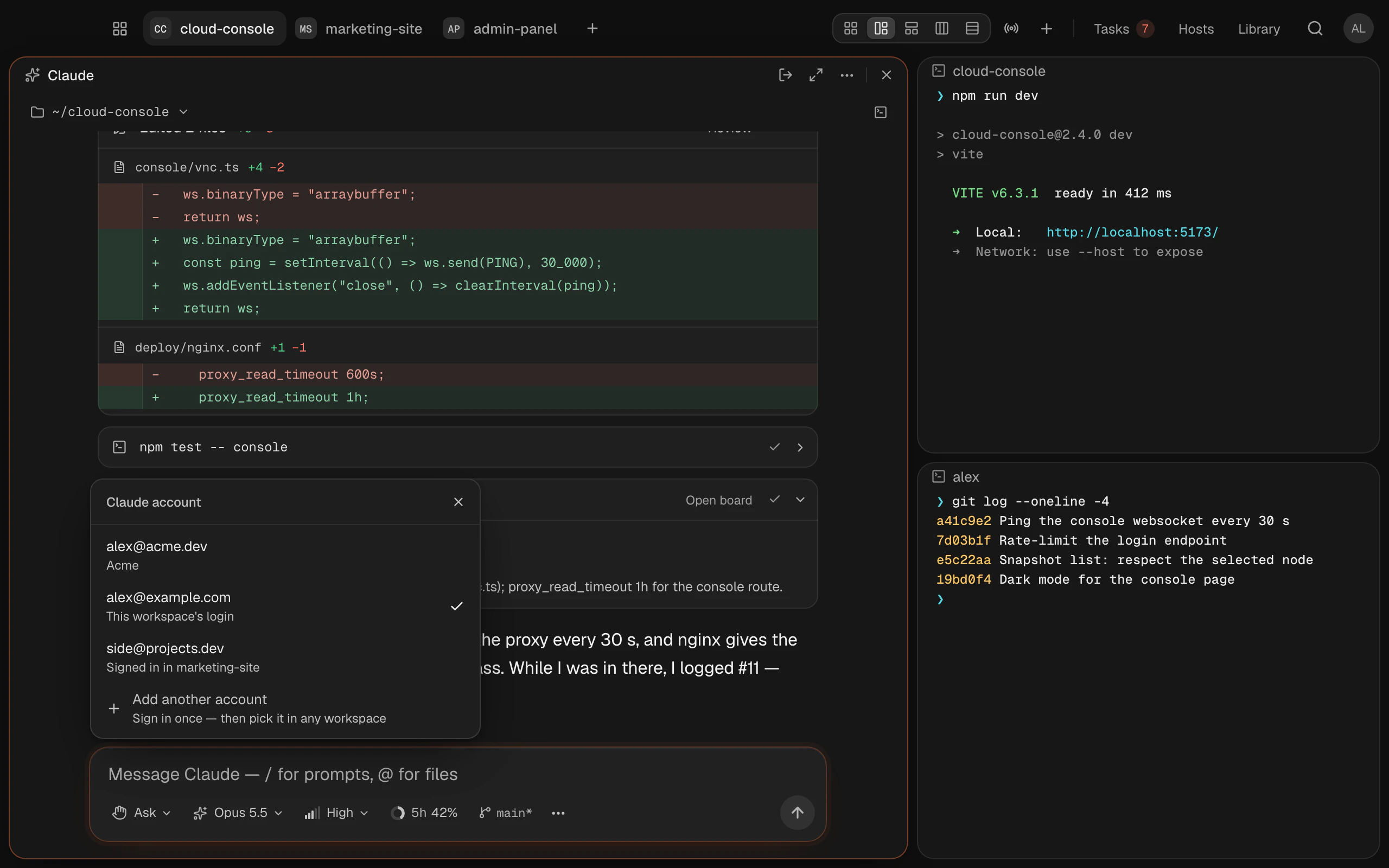
- Pick one to go on with the conversation on it. Claude starts again on that account and continues where you were.
- Add another account starts the chat on a new one, which asks you to log in.
- Use … here makes it the workspace's account, for its terminals and new chats too.
More in Several Claude accounts.
Claude Code isn't installed
The chat runs Claude Code, so it needs it on your Mac. Without it, the chat says Claude Code isn't installed and offers Install Claude Code: it types Anthropic's installer into the terminal, where you can watch it:
curl -fsSL https://claude.ai/install.sh | bashWhen it's done, choose Try again.
The chat box
Write in the box at the bottom and press to send; starts a new line. While Claude is working, what you send waits and goes after the current turn.
Under the message line, from left to right:
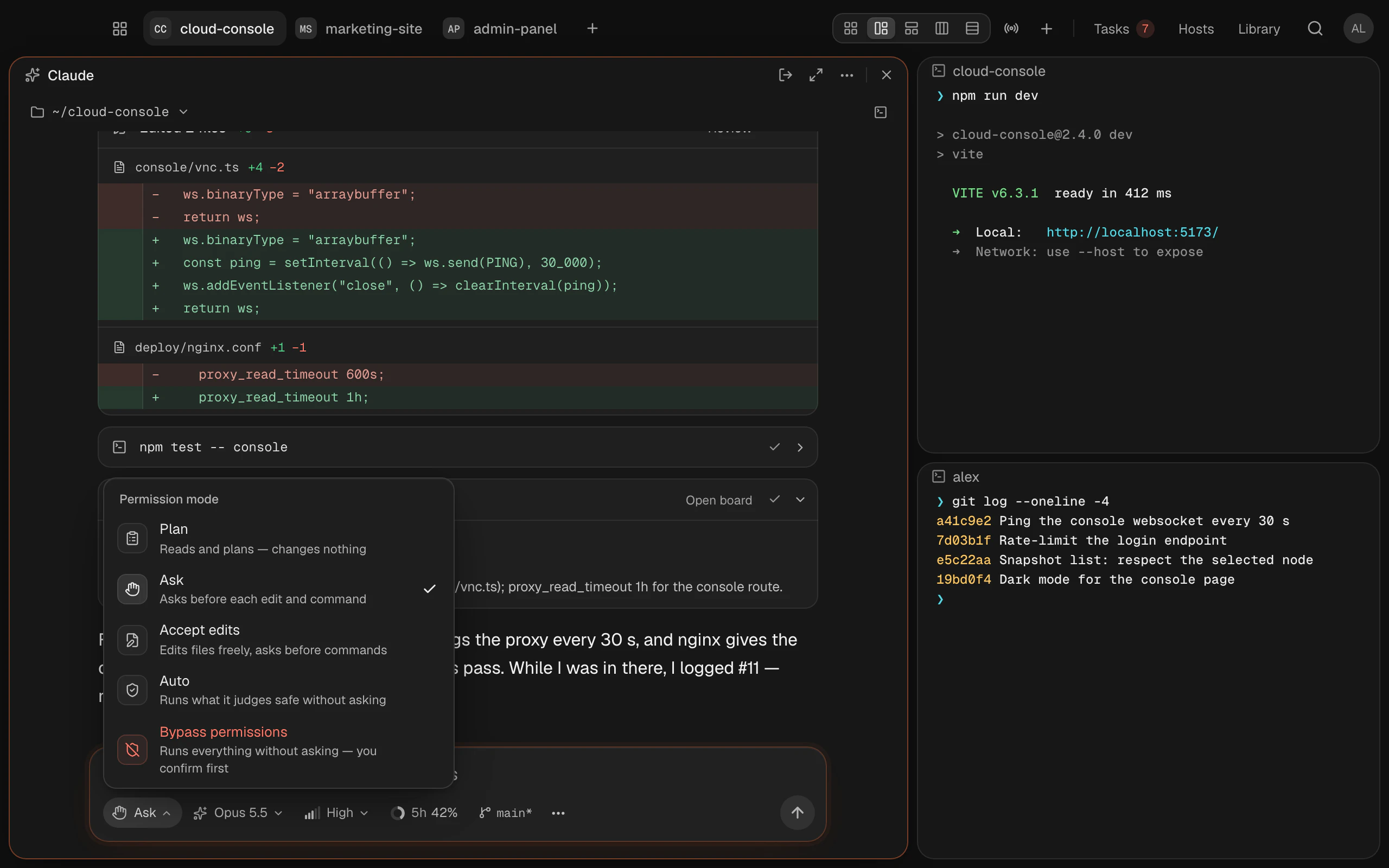
Permission mode
What Claude may do without asking you:
| Mode | What Claude does |
|---|---|
| Plan | Reads and plans, changes nothing |
| Ask | Asks before each edit and command. This is where every chat starts |
| Accept edits | Edits files freely, asks before commands |
| Auto | Runs what it judges safe without asking |
| Bypass permissions | Runs everything without asking. Termlux asks you to confirm first |
Model, effort and usage
- Model: the models your Claude Code offers. For models that have it, Fast mode answers faster and uses up your limits faster.
- Effort: how hard Claude thinks: Low, Medium, High, xHigh or Max. Default leaves it to Claude Code.
- Usage: a ring with the limit you're closest to, such as
5h 42%. When this conversation's context is 80% full, it shows that instead. Click it for Usage and limits. - Branch: the git branch, with
*when there are uncommitted changes. Click it to review the changes.
The ··· menu has Attach images…, New conversation, Resume a conversation…, Restart Claude and MCP servers (reconnect or turn off the tools Claude has).
Write messages
- / opens your saved prompts and Claude Code's commands.
- @ mentions a file of the project.
- Images: paste, drop or attach them. They're scaled down to a size Claude accepts.
On an empty chat, suggestions such as Explain this codebase, Find and fix a bug or Work on #N get you started.
When Claude asks
- Permission: Claude wants to run a command or edit a file. Allow (), Deny, or a suggested Always allow… for that kind of action. Typing a reply instead declines it, and Claude gets your text as the reason. The card shows everything the tool would get: the whole command, or each of its settings. Invisible characters and long runs of blank lines or spaces in a command are marked, so nothing hides below its first line.
- A question: pick an answer, or write your own under Something else….
- A plan: in Plan mode, Claude shows its plan. Approve it, Approve, allow edits to let it edit freely, or Keep planning.
stops Claude at any point.
When Termlux is in the background, it notifies you when Claude needs you or finishes.
What Claude did
Claude's work shows as cards in the conversation: commands with their output (Copy command, Send to background), edits as diffs, files it read, searches, its plan and to-dos, and task board changes.
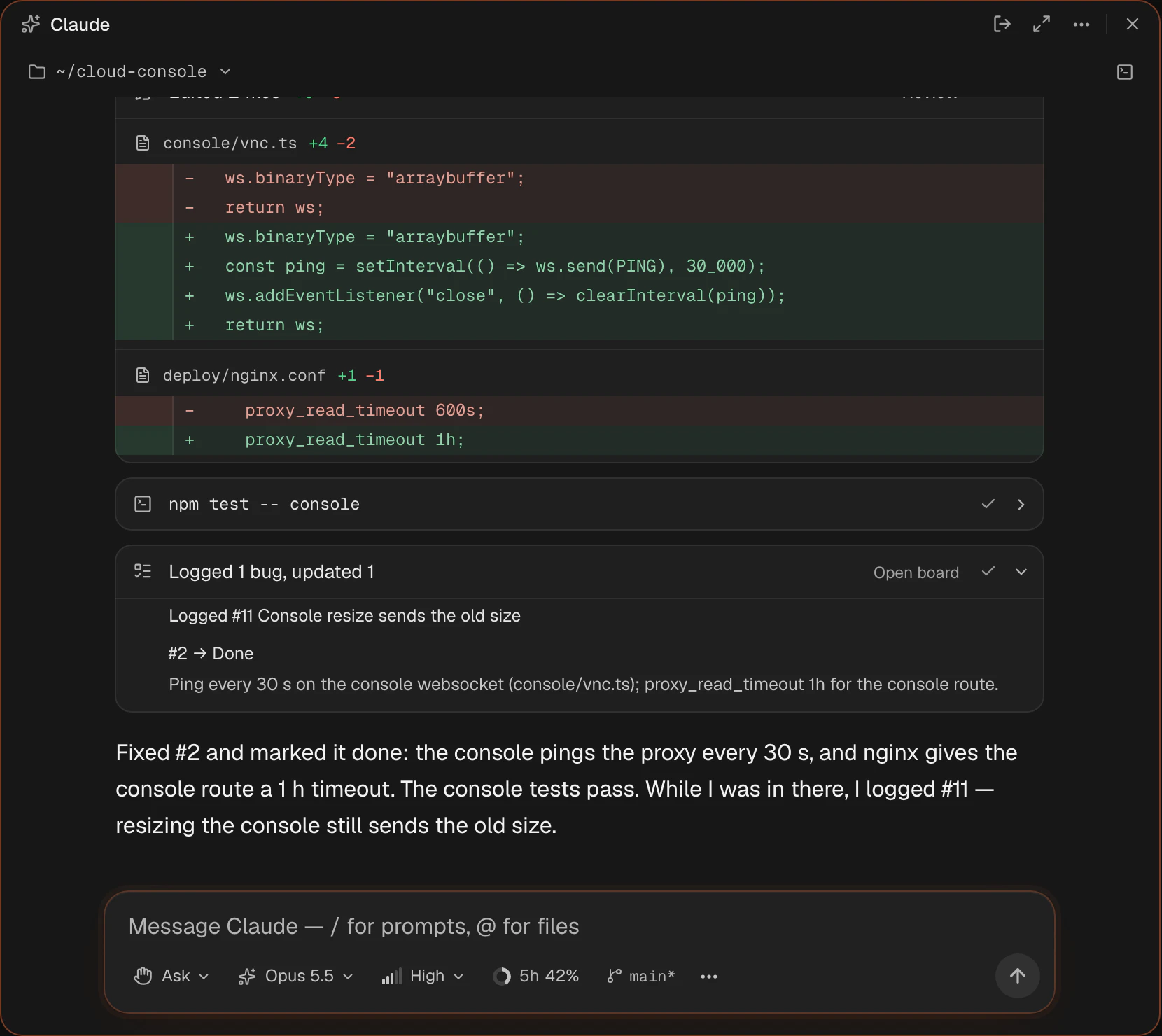
Hover over a message for Copy message and Quote in reply, or over a reply for Copy as Markdown.
Undo what it changed
On any of your messages, Undo changes since here… puts the files Claude changed since that message back the way they were.
Folders that run commands
A project's own Claude settings (in .claude/ or .mcp.json) can run commands. Before Claude starts in a folder with such settings, Termlux asks Trust this folder's Claude settings? and offers Trust and start or Don't start. It asks again whenever they change.
Long chats that went quiet
Claude caches a conversation for a while (5 minutes, or an hour). After that, the next message re-reads the whole conversation, which uses a lot of your limits on a long chat. For a chat over 100,000 tokens that's been idle that long, Termlux asks first:
- Continue from a summary (recommended) starts fresh from a summary of the chat.
- Send as-is, or start a New chat.
Turn this off with Settings › General › Ask before sending into a cold chat.
Find a past chat
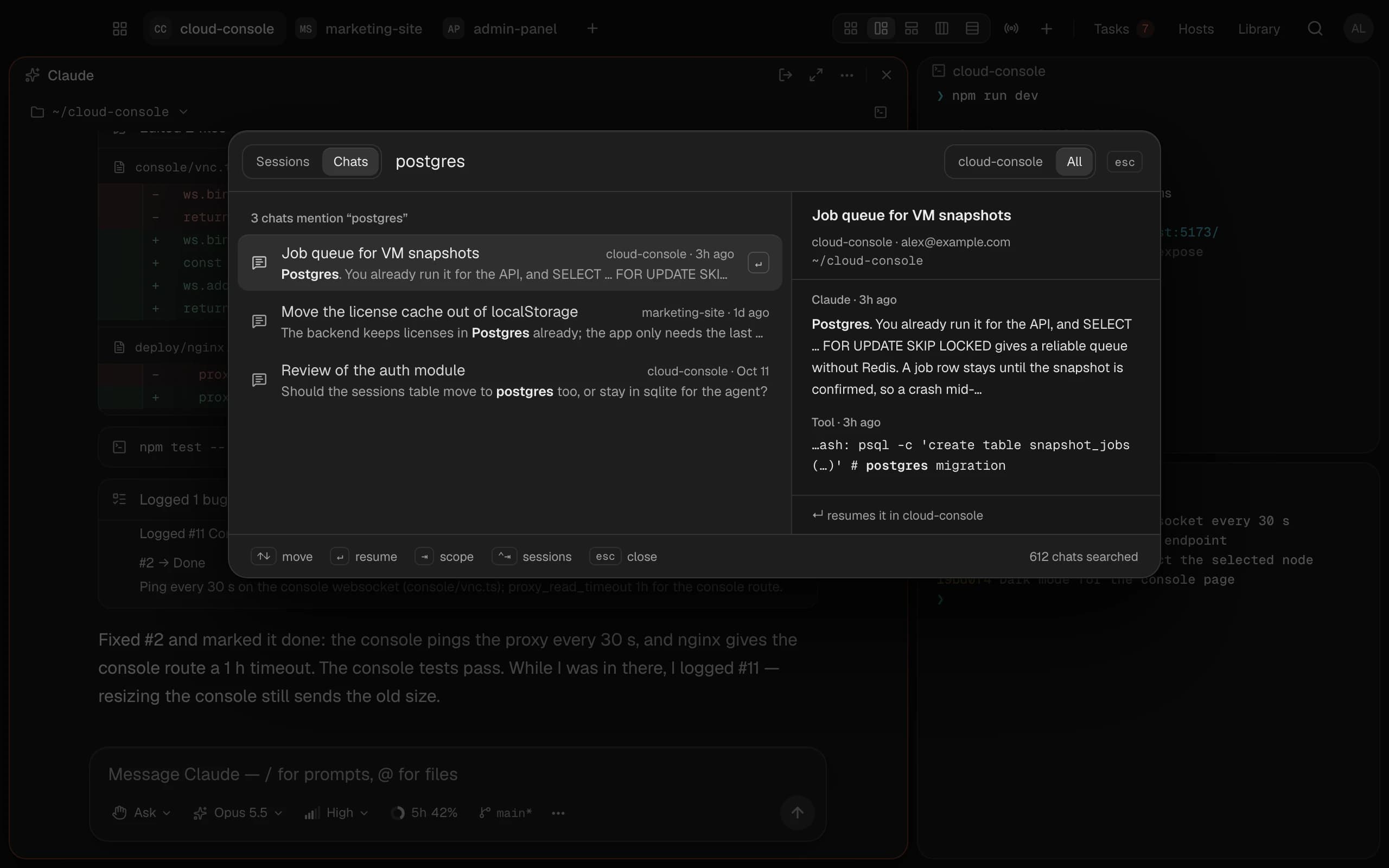
Press and switch to Chats () to search everything you and Claude said: your messages, Claude's answers and the commands it ran. switches between this workspace and all of them, so you search across all your Claude accounts at once. Every word you type has to be in one message.
Each result shows the conversation, its workspace and when, with your words in bold; beside the list are the matching messages. picks the conversation up where you left off, in its workspace and folder, scrolled to the message. You can also start with and Search past chats….
Delete past chats
In ··· › Resume a conversation…, a conversation's bin, or on the highlighted one, deletes it. -click or -click to pick several, then Delete. Undo brings them back. The conversation on screen, and one open in another chat, can't be deleted.
Back to the terminal
, Exit Claude in the block's menu, or /exit in the chat take the session back to its terminal. The conversation is saved: claude -c continues it.
peeks at the terminal under the chat without leaving it.