Keyboard shortcuts
Every shortcut in one place. In the app, press ? for the same list, searchable.
Find a shortcut in the app
Press (outside a text field) for the shortcut sheet, and type to find one. Shortcuts can't be changed.
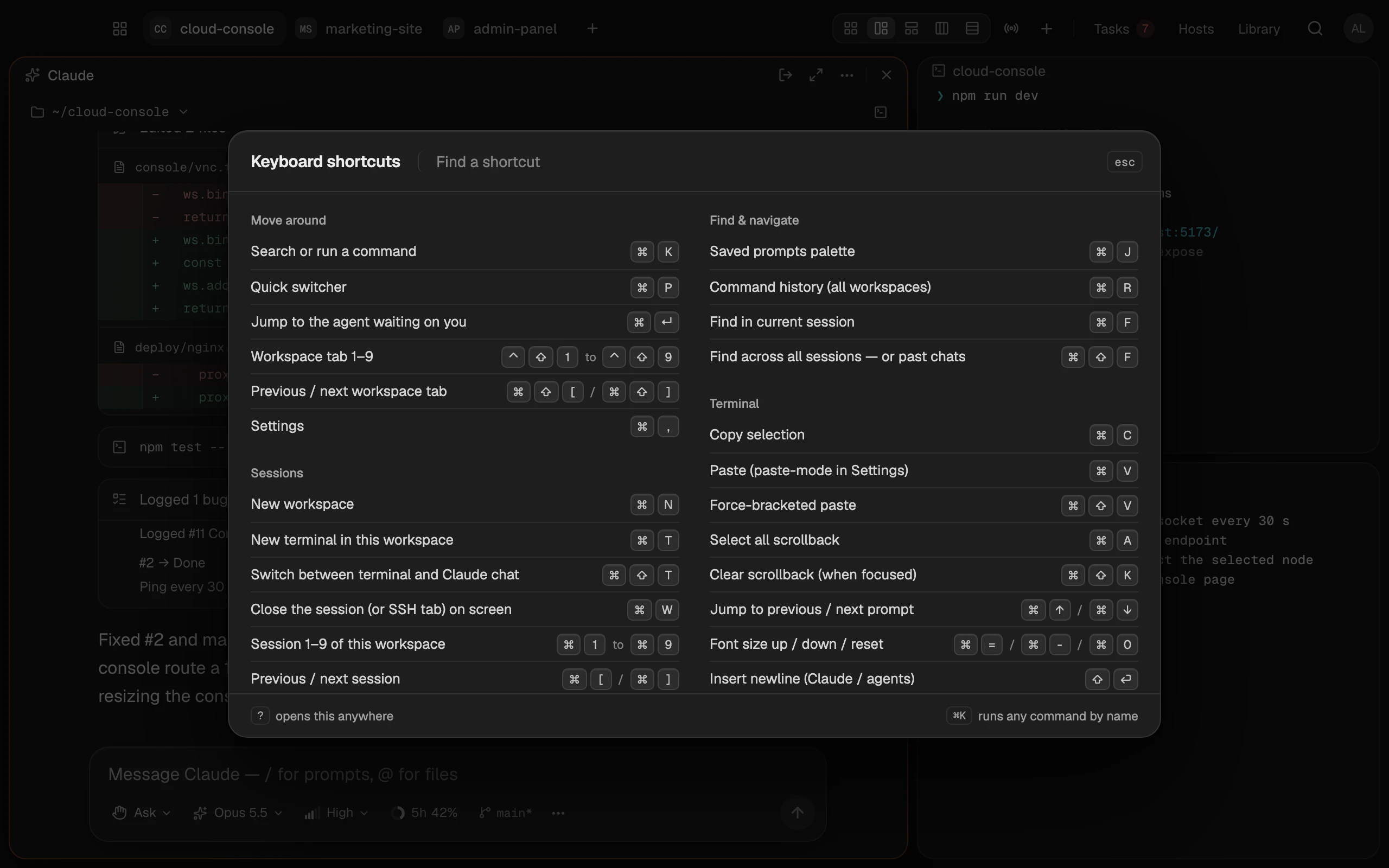
Move around
| Keys | What it does |
|---|---|
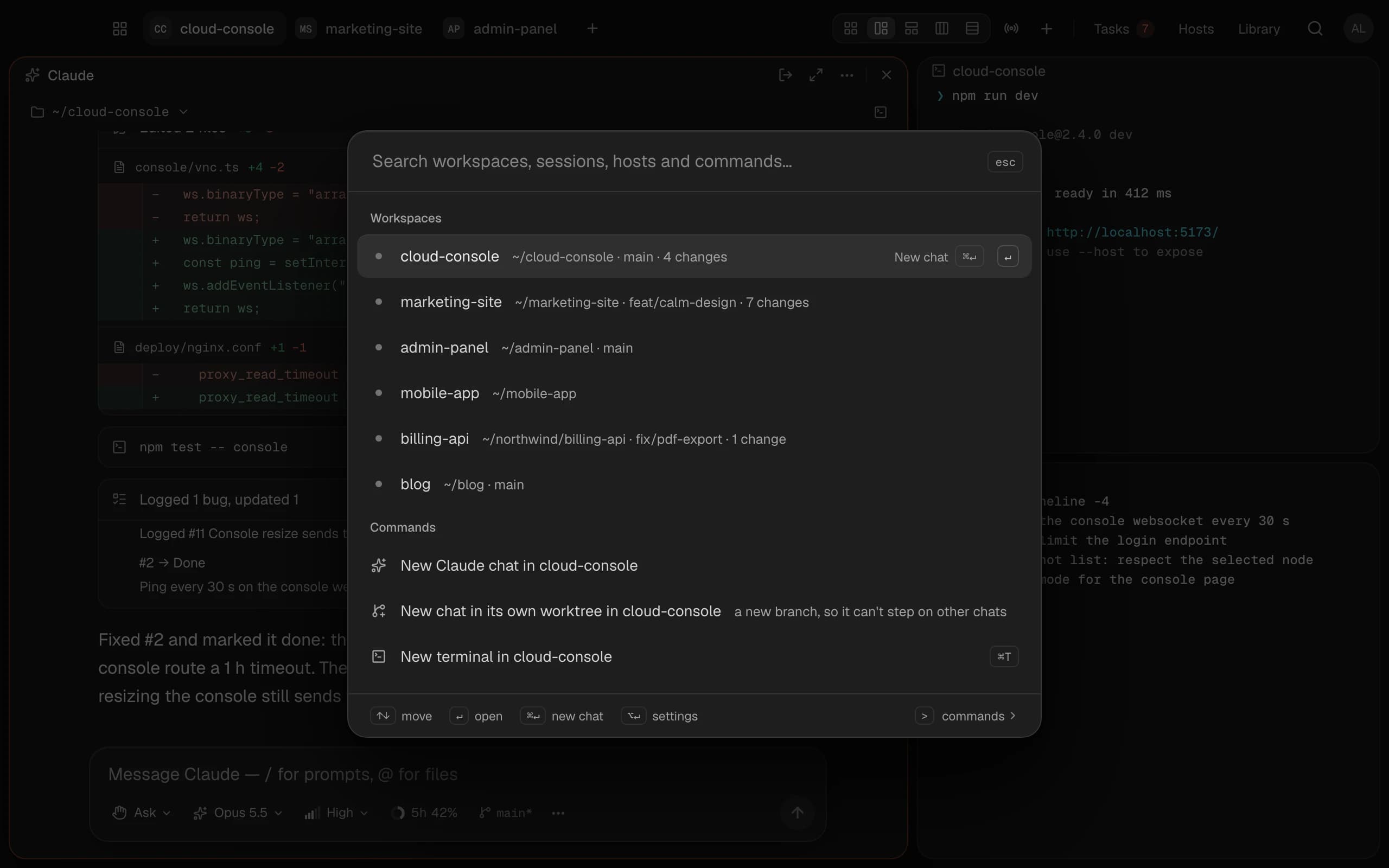
| Search or run a command (or click the magnifier at the top right) | |
| Quick switcher: jump to a workspace or session | |
| Jump to the agent waiting on you | |
| … | Workspace tab 1–9 |
| Previous / next workspace tab | |
| Settings | |
| Show or hide Termlux, from any app |
Home
On a workspace selected in Home's list:
| Keys | What it does |
|---|---|
| Move through the list | |
| Open it | |
| New Claude chat in it | |
| Pin to the top, or unpin | |
| Review its changes | |
| Show its folder in Finder | |
| Its settings | |
| Rename it | |
| -click, -click | Select several; too |
| Select all | |
| Delete it, or the selected ones | |
| Move it up or down, in Your order | |
| Its menu |
Sessions
| Keys | What it does |
|---|---|
| New workspace | |
| New terminal in this workspace | |
| Switch between terminal and Claude chat | |
| Close the session (or SSH tab) on screen | |
| … | Session 1–9 of this workspace |
| Previous / next session |
Blocks
| Keys | What it does |
|---|---|
| Maximize the block; again to restore | |
| Restore (outside a terminal) | |
| … | Layout: auto, main + right, main + bottom, columns, rows |
| Move the block (swap with its neighbour) | |
| Rename (on a block's name) | |
| A block's menu (on its name) |
Claude chat
| Keys | What it does |
|---|---|
| Send, or allow when Claude asks | |
| New line | |
| Your saved prompts and Claude's commands | |
| Mention a file | |
| Stop Claude | |
| Show or fold the terminal under the chat |
Find
| Keys | What it does |
|---|---|
| Saved prompts | |
| Command history, all workspaces | |
| Find in this session | |
| Find across all sessions | |
| In ⌘⇧F: sessions or past chats |
In these palettes, switches between this workspace and all, and runs the command or sends the prompt.
Terminal
| Keys | What it does |
|---|---|
| Copy the selection | |
| Paste (see Settings › General › Paste mode) | |
| Paste as a block (bracketed) | |
| Select all scrollback | |
| Clear scrollback | |
| Previous / next prompt | |
| Font size up / down / reset | |
| New line without sending (Claude Code and other agents) |
On other screens
- Review: see Review and commit changes.
- Task board: see The task board.
- Hosts: new, open a shell, edit, duplicate, delete, or filter.
- Files: see Files on your servers.
- Home: on a workspace, opens it, starts a chat, pins it, reviews its changes, shows it in Finder, opens its settings.
- Workspace settings: saves.
- ⌘K: a leading
>lists only commands; on a workspace starts a chat there, opens its settings.