Terminals and sessions
Each workspace holds sessions (terminals, agent chats and SSH shells) side by side. Arrange them, type into all at once, find anything in their scrollback.
Sessions are blocks
A workspace shows its sessions as blocks, side by side: terminals, Claude chats, and shells on your servers. Click + in the workspace's toolbar for a New Claude chat or a New terminal ().
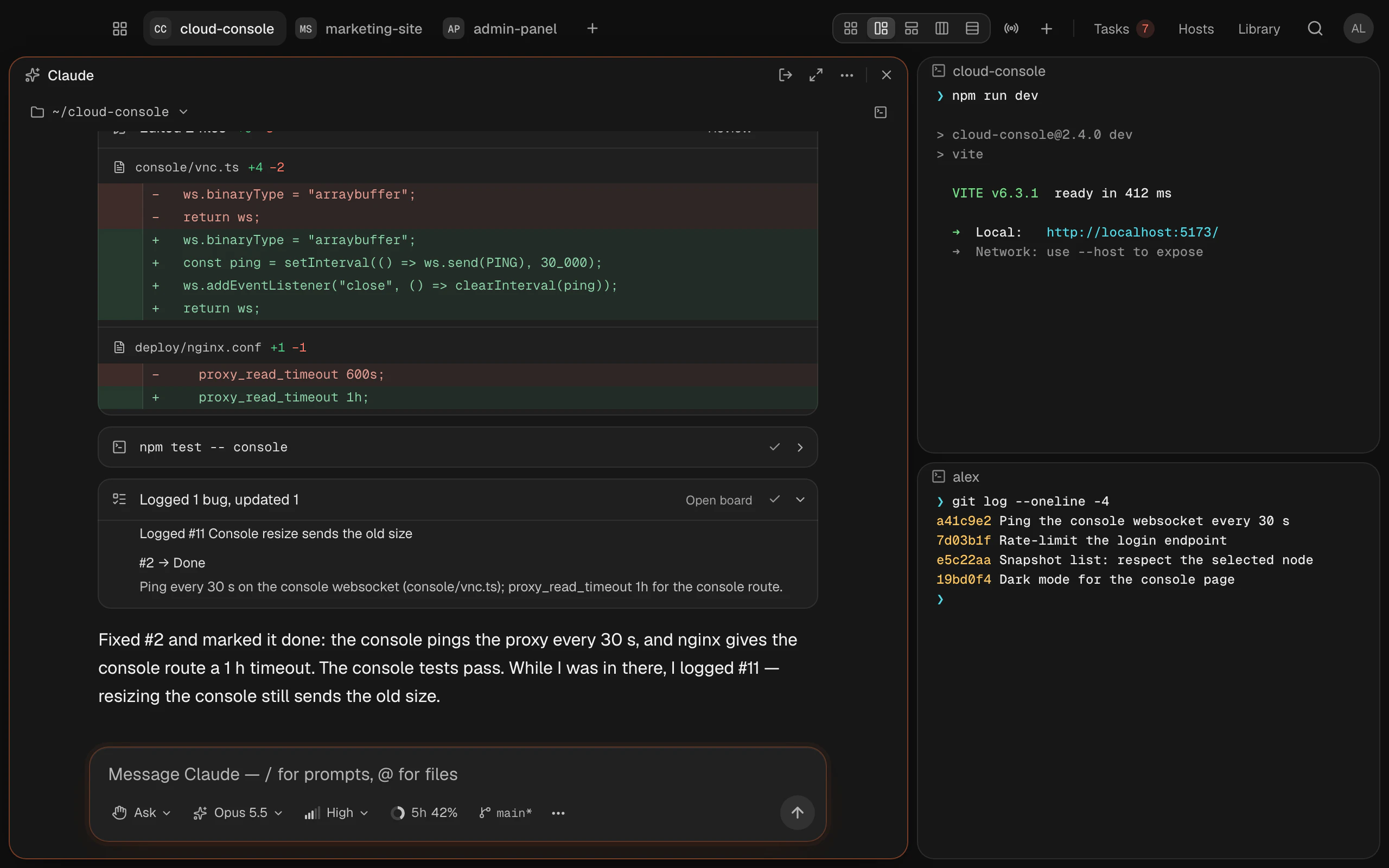
A new terminal starts in the folder of the session you're in. With none, it starts in the workspace's folder.
Move between sessions with to , or and .
Arrange them
Pick a layout from the toolbar, or with to :
| Keys | Layout |
|---|---|
| Auto grid | |
| Main + right | |
| Main + bottom | |
| Columns | |
| Rows |
- Resize: drag the gap between blocks; double-click it to reset.
- Swap: drag a block's header onto another, or use .
- Full view: fills the window with one block; press it again, or , to go back.
- Rename: on a block's name.
A block's menu (click its name, or ) also has Duplicate, Make main, Review changes, Project docs…, Copy folder path and Redraw terminal.
When the window is too small for every block, Termlux shows one at a time, with a switcher.
Type into every terminal
With two or more sessions, the toolbar has Broadcast to every terminal. While it's on, what you type goes to all of this workspace's terminals on your Mac, never to SSH sessions. Use it to run the same command in several checkouts.
Paste, drop, copy
- Paste () follows Settings › General › Paste mode. Direct (the default) types one line as it is and skips Claude Code's "Paste N lines" preview; text with more than one line, and long text, is always pasted as a block, so a shell doesn't run it before you've seen it. always pastes as a block.
- Images: paste one into a terminal and Termlux saves it to a file and types its path, so Claude Code or Codex can attach it.
- Drop files on a terminal to type their paths. Drop images on a chat to attach them.
- Copy: select text, then . Programs in the terminal can put text on your clipboard but can never read it.
Clicking a file path in a terminal opens the file; hovering over an image's path previews it. A file that could run or install something when opened, such as an app, a script or a program, is shown in Finder instead.
Find things
| Keys | Finds |
|---|---|
| Text in this session | |
| Text in every session's scrollback; switches between this workspace and all | |
| Past Claude chats: what you and Claude said | |
| Every command you ran, in all workspaces. types it, runs it | |
| The previous or next prompt in this terminal |
A terminal keeps 10,000 lines of scrollback. clears it.
Close a session
, or the × at the end of a session's header, closes it. Termlux always asks first, and if something is still running in the session it says that stops too; to keep it running, switch away instead. In the question, means Cancel, so a stray key never closes a session. never closes the window.
Closing the window quits Termlux. Its port forwards and Claude chats stop with it.
When you open Termlux again
With Settings › General › Restore sessions on launch on (the default), your sessions come back: their names, folders and Claude conversations.
Show Termlux from anywhere
shows or hides Termlux from any app.
Text size and look
and change the terminal's font size, resets it. Font, theme, cursor and background opacity are in Settings › Appearance.