The task board
Each workspace has a board of bugs, features and to-dos that you and Claude both keep, so nothing noticed along the way gets forgotten.
What it is
The board is the workspace's list of work: bugs, features and tasks. Open it with Tasks in the top bar (its count turns red when bugs are open), from the workspace's menu, or with .
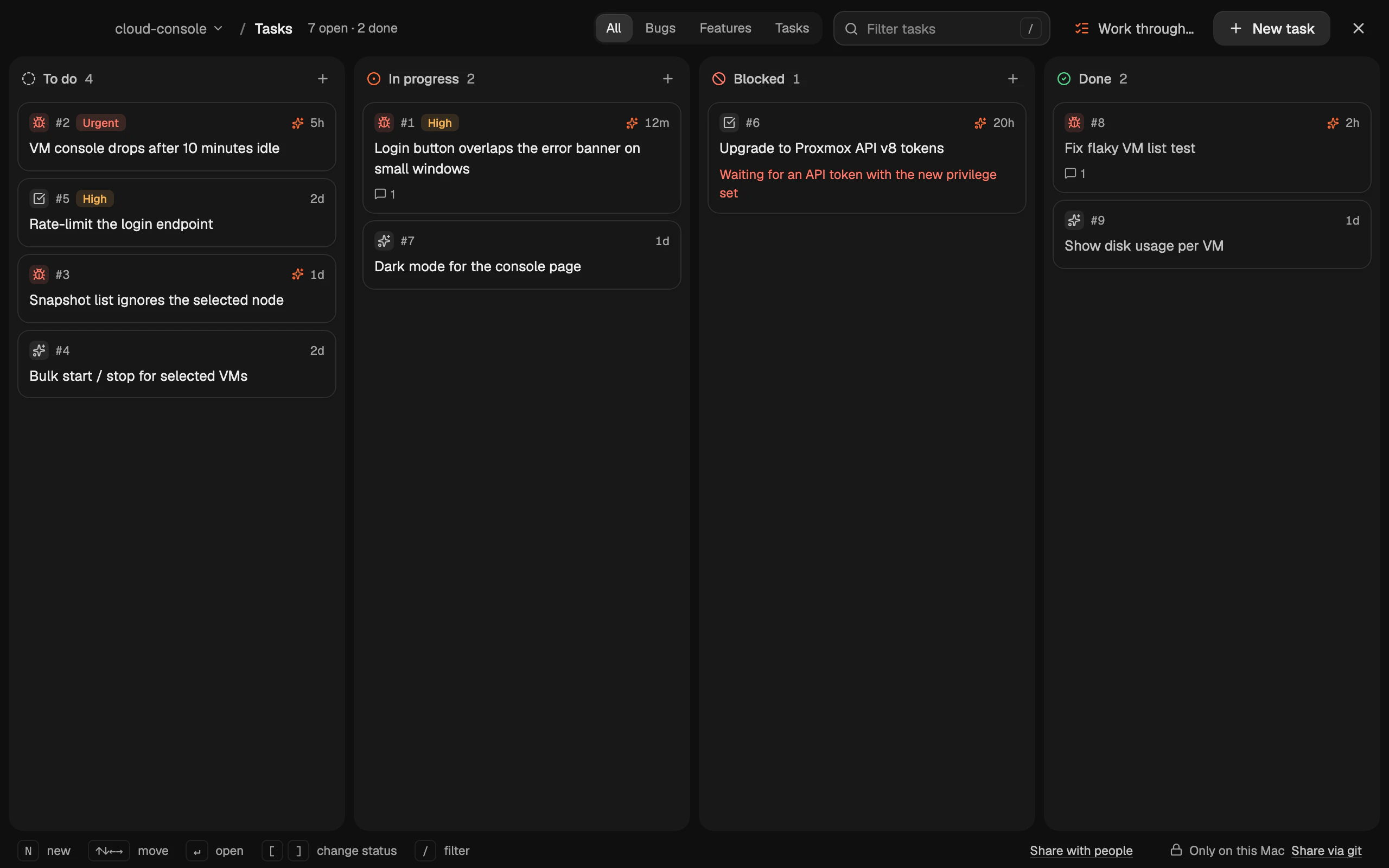
Claude works the same board. Without being asked, it logs bugs it notices along the way; when you ask it to work on #12, it moves the task to In progress, does the work and marks it Done with a note on what it changed. See what Claude can do with it.
Tasks
Each task has a number (#12) that's never reused, and:
| Field | Values |
|---|---|
| Type | Bug, Feature, Task |
| Status | To do, In progress, Blocked (with why), Done |
| Priority | Urgent, High, Medium, Low |
| Description | Markdown: what it's about, how to reproduce it, what done means |
A task's page shows its Activity: who changed what, and notes. Leave a note… adds one (). Work on this with Claude sends the task to the workspace's chat.
Keys on the board
| Keys | What it does |
|---|---|
| New task | |
| or | Filter |
| Move between tasks (or ) | |
| Open the task | |
| Move it to the previous / next status | |
| Delete it | |
| Close |
Several at once
-click cards to select them, -click to select everything in between, or for every card shown. A bar then offers Move to (a status), Priority and Delete for all of them. Deleting asks once, and Undo puts them all back. Drag one of them and the others come along. or the bar's ✕ ends selecting.
Let Claude work through it
Work through… hands Claude several to-dos in a row. It takes them one at a time, marks each done or blocked, and stops to tell you when it needs you.
Choose How many (up to 10), Which kind, and Where: in a new chat or one that's open. Let Claude edit files without asking during this run saves you approving every edit. Then click Start · N tasks. You can also start a run with and Work through the task board.
The sheet shows where the workspace's Claude account stands: its 5-hour and weekly use, and when each resets. Near a limit, Termlux asks whether to start now or when the limit resets. If a run reaches a limit partway, it pauses instead of ending: Continue when the limit resets picks up the same task, in the same chat.
Work through it in parallel
Turn on Run in parallel, each task in its own worktree, and choose how many run At once: 1 to 5, 3 unless you change it. Each task gets its own chat on its own branch, in its own worktree, and when one finishes the next starts. If Claude stops to ask you something on one task, the others go on.
Each card shows Claude is on it, Needs you or Queued. The strip under the board's header counts what's done, with Stop after these, which lets the running tasks finish, and Stop now. Finished work waits in To review, for you to merge.
A run in parallel ends when you quit Termlux. Its chats and branches stay.
What Claude used
A task's page shows what Claude's work on it used, for example Claude 2 runs · 412k tokens · ≈ $3.10. It counts board runs and the chat started with Work on this with Claude, until the task is done or blocked. The dollar figure is what the same work would cost at Anthropic's API prices; plans aren't billed per token. It stays on this Mac and isn't part of the shared board.
Where the board lives
The board is part of the workspace's folder (its Start folder): one small file per task, in .termlux/tasks/. A workspace without a folder has no board; give it one in Workspace settings › Agent & startup › Start folder.
When Claude tries to use the board of a workspace without a folder, Termlux asks Keep tasks for "workspace"? Choosing Use this folder makes the folder Claude is working in the workspace's folder.
Share it
Out of the box, a board is private: .termlux/ is kept out of git.
- With people, live: Share with people lets you invite people by email. Everyone on the board sees every change (a task added, moved to Done, a note, Claude's too) within a second, with no commit or pull. See Share a board with people.
- With your other Macs: for a workspace you sync, its board syncs too, through your Termlux account, and changes show up on your other Macs right away. The board's footer says Synced to your account; click it, then Don't sync, to keep this board off your account. Each Mac keeps its copy.
- With your team, through git: Share via git puts the tasks into the project, as changes to commit. Teammates who pull get the board. Stop sharing takes it out again.
Share a board with people
1. Open the board and click Share with people in its footer.
2. Name the board and click Share.
3. Under Invite by email, type someone's address and click Invite. They get an email, and the invitation waits for them in Termlux, at the top of Tasks, for 14 days.
The footer then says Shared with 3 people. Click it to see who's on the board, withdraw an invitation, remove someone, or Stop sharing. Everyone keeps their copy of the tasks. Up to 10 people can be on a board, counting open invitations.
Invited? The invitation shows at the top of Tasks. Click Join…, then pick the workspace that's your copy of the project: the board's tasks go into its folder, and the tasks it already had join the board. Leave board, in the same sheet, takes you off it; the tasks stay with you.
- The history says who did what: someone's Termlux name, and Claude · Bea for Claude working for Bea.
- Termlux hands out the task numbers, so two people adding a task at the same moment never both get #8.
- A board is shared one way at a time: one shared through git has to stop that first.