SSH keys and passwords
Make a key in two clicks, put it on your server, and see which hosts keep a password in your Keychain.
The Keychain screen
Click your initials at the top right and choose Keychain, or press and type keychain. It lists:
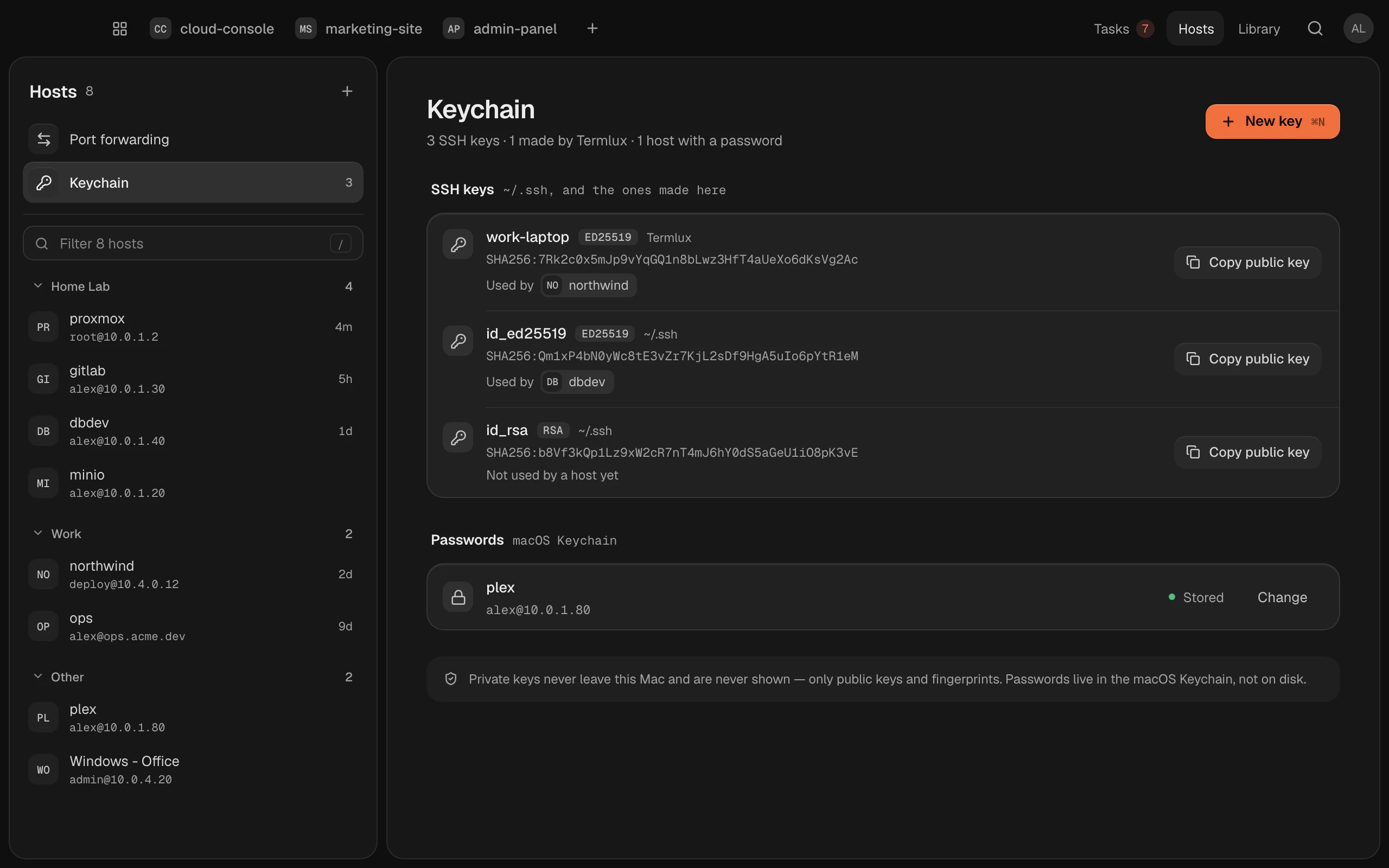
- SSH keys: the keys in your
~/.sshfolder and the ones made in Termlux. - Passwords: your hosts, and whether each has a password Stored in the macOS Keychain or Asked each time.
Make a key
1. Click New key ().
2. Give it a Name and choose a Type: Ed25519 (recommended), ECDSA or RSA 4096. Add a Comment if you like.
3. Click Generate key.
Termlux shows the public key, with Copy. Click Use it for a host to set a host to sign in with it.
Keys made in Termlux are kept in ~/Library/Application Support/Termlux/keys/. They have no passphrase.
Put the key on your server
The server needs your public key in its ~/.ssh/authorized_keys. The easiest way is ssh-copy-id, in a terminal:
ssh-copy-id -i ~/Library/Application\ Support/Termlux/keys/my-key.pub user@example.comIt asks for the server's password once. Then edit the host, set Method to Key and choose the key.
Passwords
A host set to Password keeps it in the macOS Keychain and fills it in when you connect. It never goes to disk, to a command line, or to your other Macs. Clear stored in the host's editor removes it.
Keys and your other Macs
Keys never sync. A synced host carries only which key it uses: the key's file name and fingerprint. On your other Mac, Termlux looks for a key with the same fingerprint, in Termlux's keys or ~/.ssh. If there isn't one, the host says Key not on this Mac; copy the key there yourself, or pick another one.