Workspaces
One workspace per project: its folder, its agent, its own Claude account, history and settings. Make them, group them, switch between them, and tidy them up.
What a workspace keeps apart
Each workspace keeps a few things of its own, in a folder inside Termlux's data:
- its own Claude login, unless it uses an account you logged in to elsewhere (Several Claude accounts), and its chats;
- Codex's login and settings, and the Cursor CLI's settings, if you use them;
- its shell history.
Everything else is your Mac as usual. Every workspace uses your home folder, so Docker, git, SSH, 1Password, the AWS and GitHub CLIs, kubectl, npm and all your other tools find their settings and logins, as in any terminal. Your ~/.zshrc and ~/.zprofile run too, and your prompt starts with [workspace name].
What you set up for Claude Code outside Termlux comes along: your plugins, MCP servers, skills, subagents, commands and CLAUDE.md. A workspace can add its own in Workspace settings › MCP servers. When it has one with the same name, the workspace's is used.
Several Claude accounts
Log in to each Claude account once, and any workspace or chat can use it: your work account in client projects, your personal one in side projects, a second plan when the first runs low.
- A workspace's account: Workspace settings › Agent & startup › Claude account. Its terminals, new chats, usage and limits use it.
- A chat's account: ··· › Claude account… in the chat box. Chats in one workspace can each use another account, and switching keeps the conversation.
- Add one: Add another account in a chat's account list, then log in.
- Remove one: Settings › Account › Claude accounts › Remove… Claude Code logs out of it; the conversations you had on it stay.
- See them all in Usage & limits, each with its own limits.
Termlux never sees your Claude password and doesn't keep your login: Claude Code logs in itself, and Termlux only tells it which account to use. Workspaces that use the same account share its limits.
Make a workspace
Press , or click + in the top bar and choose New workspace.
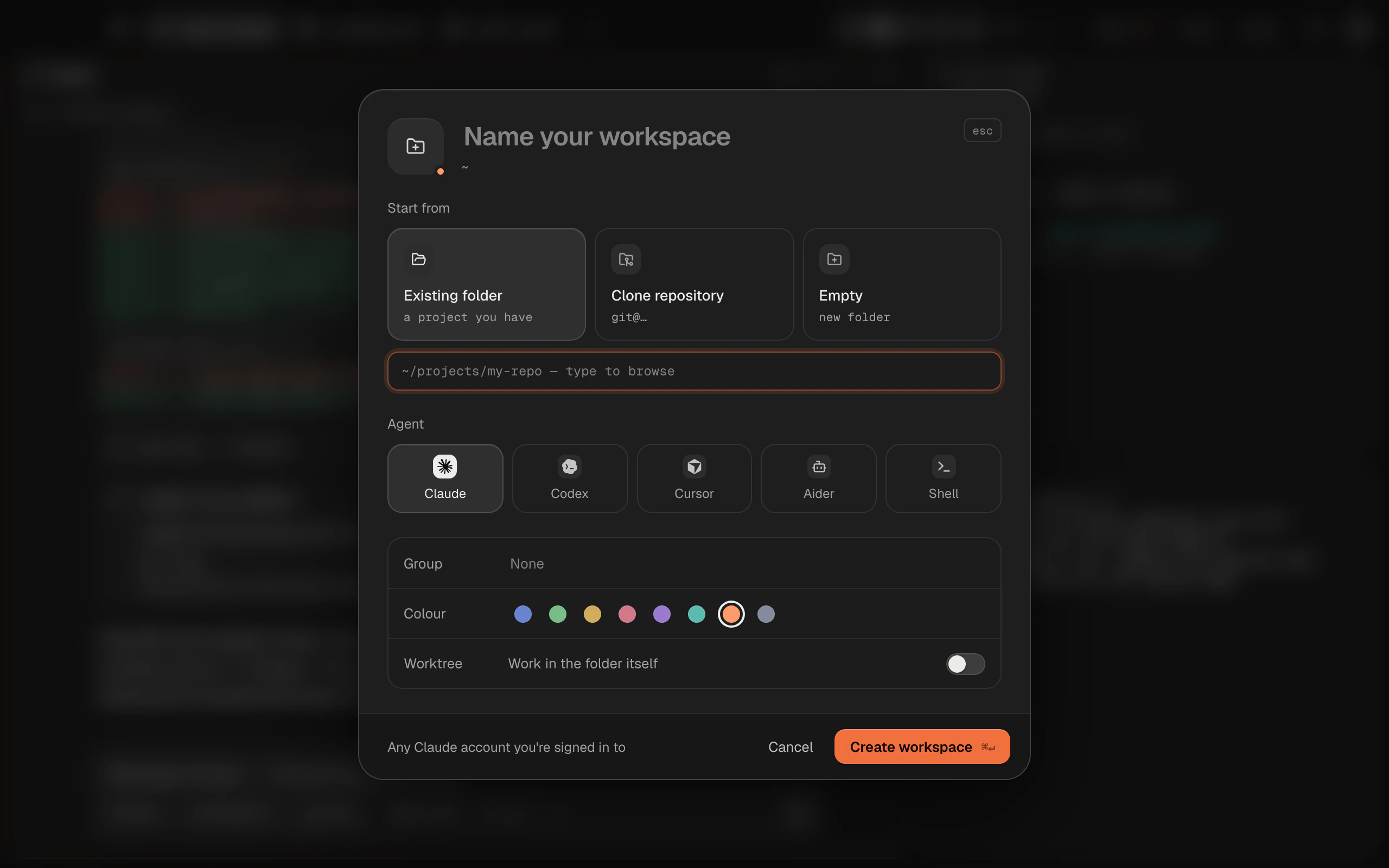
1. Name it. Left blank, it takes the folder's or repository's name.
2. Choose where it starts from: - Existing folder: type a path (it browses as you type) or pick one of the Recent folders. Termlux tells you what it found: a git repository with its branch and uncommitted changes, or a plain folder. - Clone repository: paste the repository's URL (
https://…orgit@…) and choose where to put it (~/Projectsunless you change it). - Empty: a new folder named after the workspace, in~/Projects.3. Pick the Agent, a Group and a Colour if you like.
4. Click Create workspace ().
A worktree of its own
For an existing git repository, the Worktree switch gives the workspace its own checkout, on a new branch (feat/<name> unless you change it). It sits next to the repository, as <repo>--<branch>, and starts from the last commit. Your uncommitted changes stay where they are.
This lets Claude work on a branch in one workspace while you, or another Claude, work on main in another.
Templates
Workspace settings › General › Save as template keeps a workspace's setup (agent, folder, group, auto-start and layout) to start new ones from. Environment variables aren't copied. Templates show as chips in New workspace.
Move between workspaces
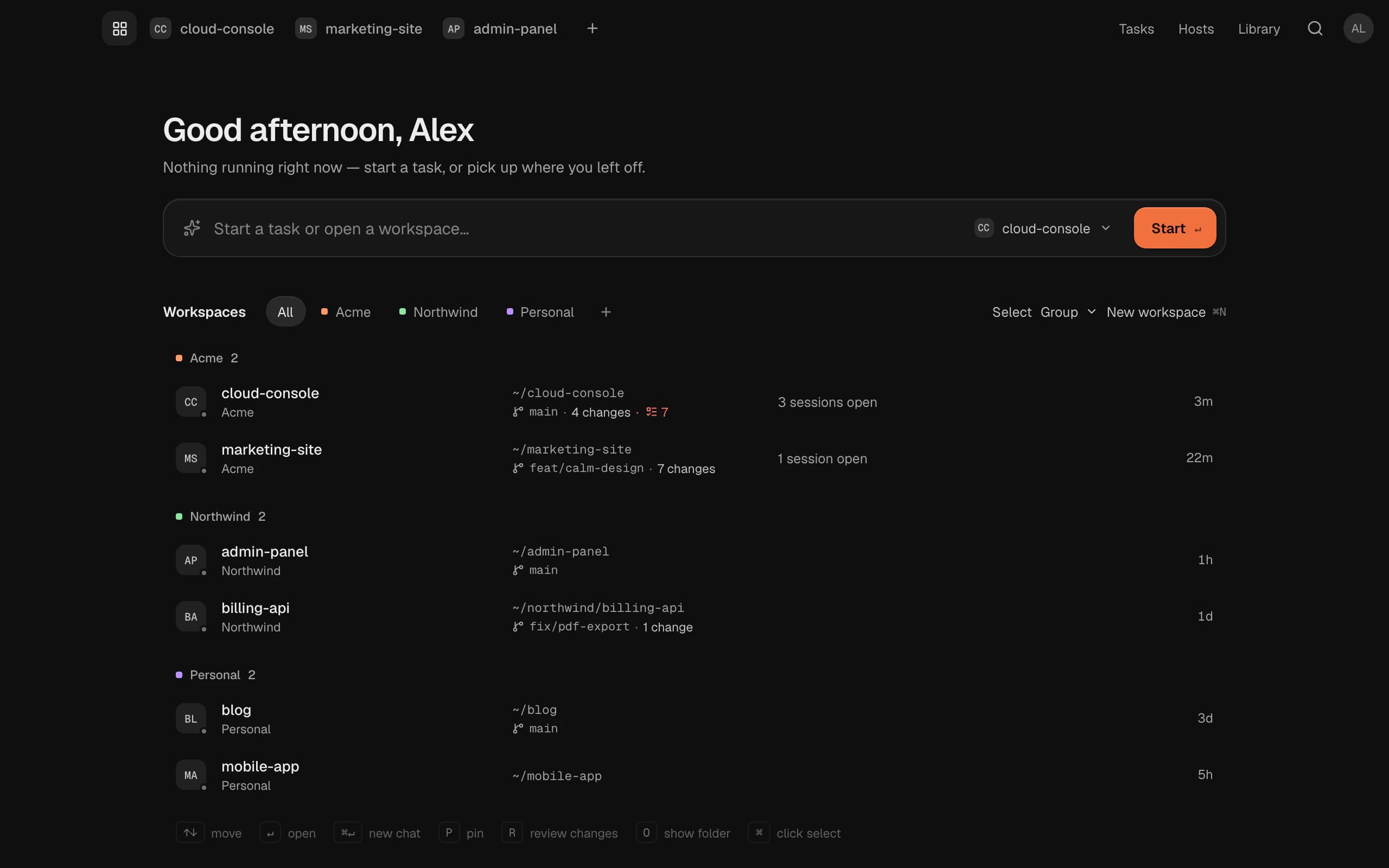
Open workspaces are tabs in the top bar.
- to jump to a tab; and go to the previous and next.
- jumps to any workspace or session by name, and , or the magnifier at the top right, searches everything.
- Home lists all your workspaces. Sort it by Recent, Name, Group or Your order; type in Start a task or open a workspace… to start a Claude chat with that as the first message.
Closing a tab (its ✕) doesn't stop work in progress. Idle shells close; sessions that are busy keep running in the background, and come back when you open the workspace again. To end everything, use Stop all sessions in its settings.
Right-click a tab, or a workspace on Home, for its menu: a new chat or terminal, its Tasks, Review changes, Show in Finder, Sync to my other Macs, and its settings. On Home you can also Pin to the top, Move to group, Rename…, Duplicate, Archive and Delete workspace….
To rename a workspace on Home, select it and press , or choose Rename…. Its name becomes a field: saves, cancels. The keys on Home work on the selected row.
Several at once
-click workspaces on Home to select them, -click to select everything in between, or for all of them. Select, above the list, does the same with plain clicks. A bar then offers Pin, Group and Delete for all of them at once, and their menu Archive. or its ✕ ends selecting.
Your order
Choose Sort › Your order on Home, then drag workspaces into the order you want, or select one and press or . The order stays until you change it.
Duplicate
Right-click a workspace › Duplicate makes a copy beside it: the same folder, settings, environment variables and layout, under a new name you can type right away. Its sessions, chats and task board aren't copied, and it isn't synced until you turn that on. Its Claude starts without a login: use an account you already have.
Archive
Right-click a workspace › Archive tucks it away: it leaves Home's list, the tab bar and the pickers, its tab closes, and anything still running keeps going. Nothing in it is deleted. Archived at the end of Home's list shows them; right-click one › Unarchive brings it back.
Groups
A group keeps workspaces together on Home, such as a client's name. With Sort › Group, Home's list shows a section per group, and the workspaces without one come last, under No group.
- Make one: the + after the group chips above the list. Name it and tick the workspaces that go in it.
- Move a workspace: right-click it › Move to group, then a group, No group, or a new one. This works for several at once too. You can also choose a group when you make a workspace, or in Workspace settings › General › Group.
- Show only one group: click its chip. All shows everything again.
- Change one: right-click its chip. Edit group… renames it and adds or takes out workspaces. Ungroup takes every workspace out and the group goes away.
Workspace settings
Open them from the workspace's menu, or with and Workspace settings. Save with .
| Section | What's in it |
|---|---|
| General | Name, group, colour, Sync to my other Macs, and Save as template |
| Agent & startup | The agent; the Start folder, where new sessions open and the task board lives; and Auto-start, a command typed into each new terminal (such as claude or pnpm dev) |
| Environment | Variables exported into every new session: API keys, NODE_ENV, additions to PATH. Paste .env reads a whole file. Values that look like secrets are hidden |
| MCP servers | Tools for Claude in this workspace only (stdio, http or sse), saved to its Claude settings. Claude picks them up the next time it starts |
| Danger zone | Stop all sessions, and Delete workspace… |
Delete a workspace
Right-click it on Home › Delete workspace… (), or use Workspace settings › Danger zone › Delete workspace…. Your project folder isn't touched.
Before it deletes, Termlux lists what goes with it: open sessions it will stop, and, for a worktree, any uncommitted changes and git-ignored files. A worktree with uncommitted changes is kept on disk.
A deleted workspace isn't gone yet. It waits in Recently deleted for 30 days, with its Claude login, chats and shell history:
- Undo, right after you delete, brings it straight back.
- Settings › Workspaces & privacy › Deleted workspaces › Show… lists them, with Restore to bring one back as it was and Delete now to remove it for good.
For a workspace you sync, you choose Remove from this Mac or Delete on all your Macs. Removed from this Mac, your other Macs keep it, and Recently deleted can bring it back here. Deleted on all your Macs, it's gone for good.