Saved prompts and snippets
Keep the prompts you send Claude and the commands you run, with blanks to fill in each time, and use them in any workspace in two keystrokes.
The Library
Open Library in the top bar. It has two tabs:
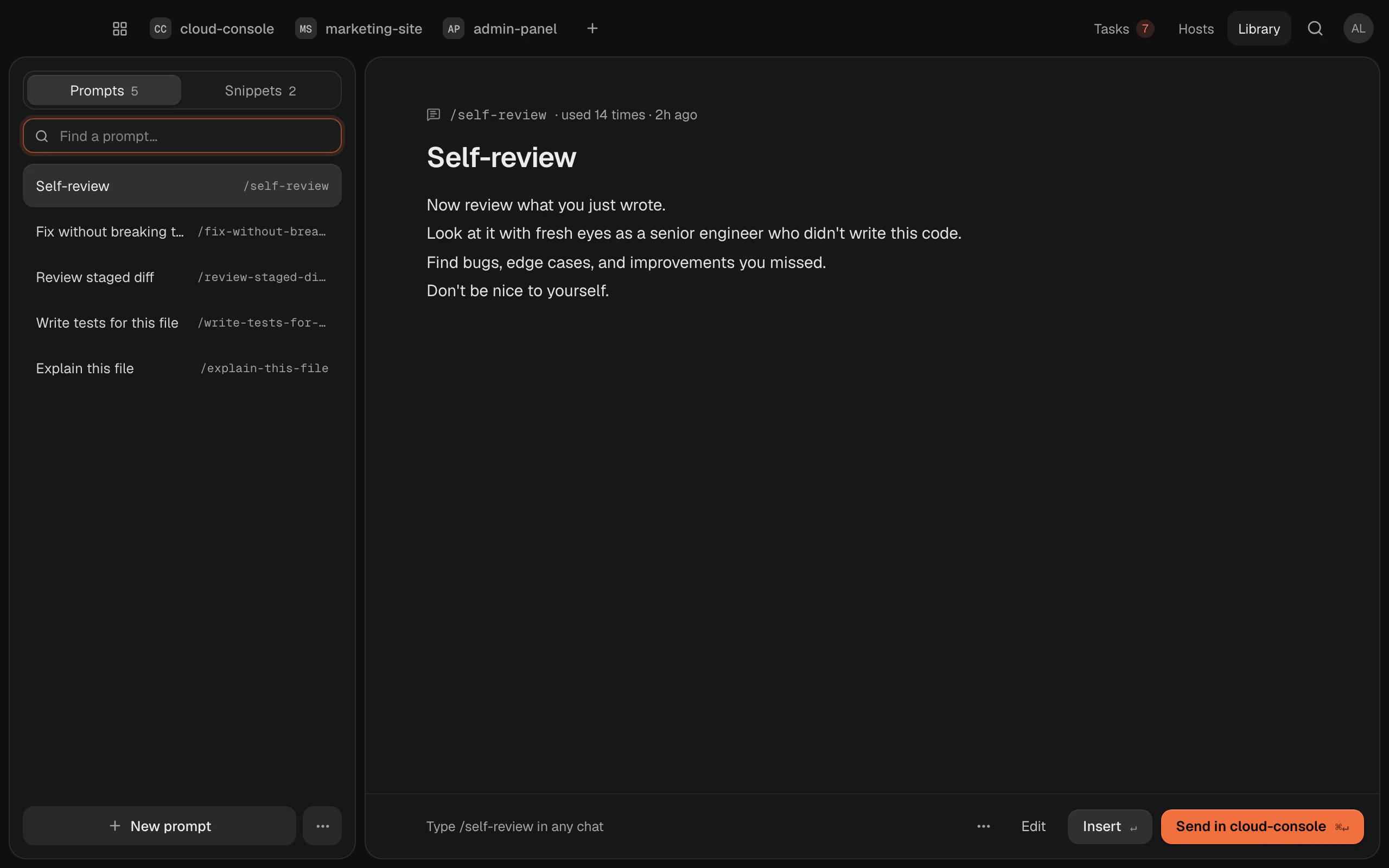
- Prompts: text for Claude, sent to the chat (or typed into a terminal).
- Snippets: commands, run in a terminal.
Make one with New prompt or New snippet. Pick one and choose Insert () to type it where you're working, or send or run it straight away (). The most recently used come first.
Termlux comes with a few starter prompts to show the idea.
Use them anywhere
- In a chat, type /. Your saved prompts are listed above Claude Code's commands.
- opens your prompts from anywhere: inserts, sends, makes a new one, edits the selected one.
- In a terminal, select text and choose Save as prompt, or right-click and Insert prompt.
Blanks to fill in
Write {{name}} where a value goes, and Termlux asks for it each time you use the prompt or snippet. Give it a default with {{name:default}}:
Review {{file}} for security problems and log what you find on the board.lsof -nP -iTCP:{{port:3000}} -sTCP:LISTENMove them to another Mac
The Library's ··· menu has Export prompts (or snippets), which copies them as JSON, and Import from clipboard, which adds them on the other Mac. Ones you already have are skipped.
Commands you've run
searches every command you ran, in all your workspaces' shell histories. types it into the terminal and runs it.